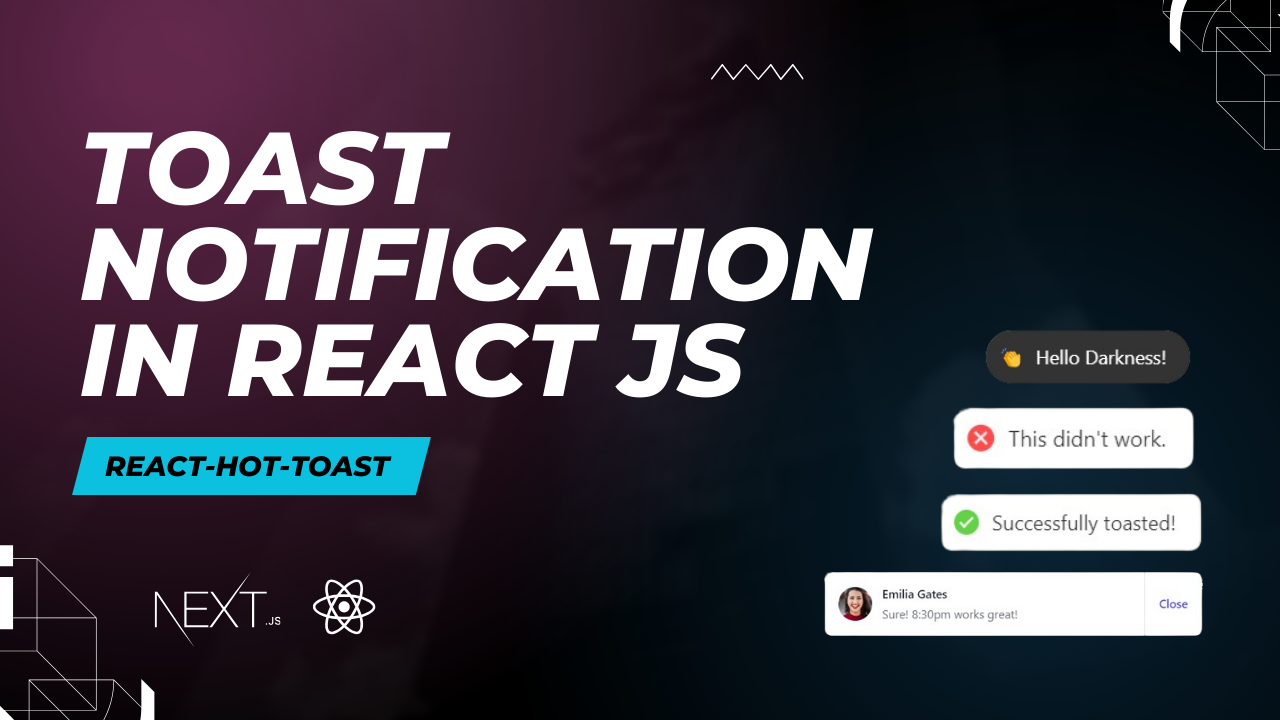
Toast Notifications in React.js with react-hot-toast
Hi there! I am Shiva Yadav, a self-taught web developer passionate about building awesome websites. I focus on creating modern websites that work well on any device.
Introduction:
React.js has become a popular choice for building dynamic and interactive web applications. One essential aspect of user experience is providing feedback for actions, and toast notifications are a great way to accomplish this. In this blog post, we'll explore how to integrate toast notifications in a React.js application using the react-hot-toast package.
What is react-hot-toast?
react-hot-toast is a lightweight and customizable toast notification library for React. It simplifies implementing notifications by providing a simple API and allowing for easy customization.
Step 1: Installation
To get started, you need to install the react-hot-toast package. Open your terminal and run the following command:
npm install react-hot-toast
Step 2: Importing and Basic Usage
Once the installation is complete, import the toast provider and use it in your application. Place <Toaster/> at the top of your application.
// Import necessary dependencies
import React from 'react';
import { Toaster} from 'react-hot-toast';

// Wrap your application with ToastProvider
function App() {
  return (
    <Toaster/>
      {/* Your application components */}
  );
}

export default App;
Step 3: Displaying Toast Notifications
Now that you have the <Toaster/> setup, you can easily display toast notifications by using the toast function provided by the package. Let's create a simple example:
import React from 'react';
import { toast} from 'react-hot-toast';

function MyComponent() {
   const notify = () => {
        toast.success('Hello, this is a success notification!');
     };

  return (
    <div>
      <button onClick={notify}>Show Notification</button>
    </div>
  );
}

export default MyComponent;
In this example, a success notification will be displayed using the method when the button is clicked. You can customize the notification type (success, error, loading, etc.) and the content according to your application's needs.
Step 4: Customizing Toast Notifications
react-hot-toast provides various options for customizing the appearance and behavior of toast notifications. You can customize the duration, position, and styling of the toasts. Refer to the package documentation for more advanced customization options.
Conclusion:
Adding toast notifications to your React.js application is a straightforward process with the help of the react-hot-toast package. By following the steps outlined in this blog post, you can enhance the user experience of your application by providing timely and visually appealing feedback to users. Explore the documentation for more customization options and make your toast notifications seamlessly integrate with your application's design.